Employee directory software for Microsoft 365
Empower your teams with a more connected workplace. OneDirectory® is a visual employee directory and org chart that helps streamline communication within your organization.
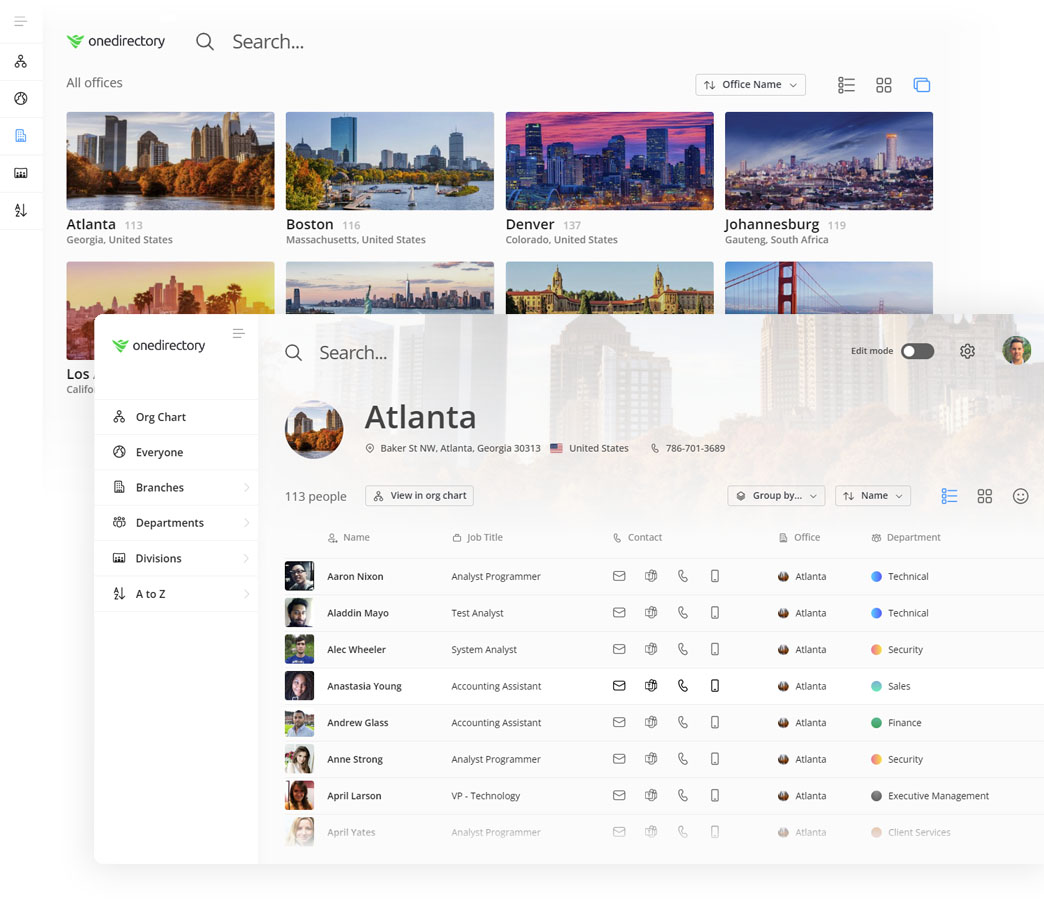
Create a more connected workplace with automated employee directory software.
As your company grows it gets harder to know who's who and where everyone fits in. OneDirectory® helps your employees connect with each other and gain insight into your organization's structure, in ways they haven't been able to, until now.
Trusted by hundreds of companies worldwide










"A really useful addition to our intranet."Cindy Liu, SharePoint Admin |
Find anyone in your company, fast.
OneDirectory brings fast, visual people search to your organization. Search your entire corporate directory in a split second. Then explore the results in powerful ways, with smart tags, group tiles, beautiful profile cards, and responsive list views. It's unlike any employee directory software you've used before.
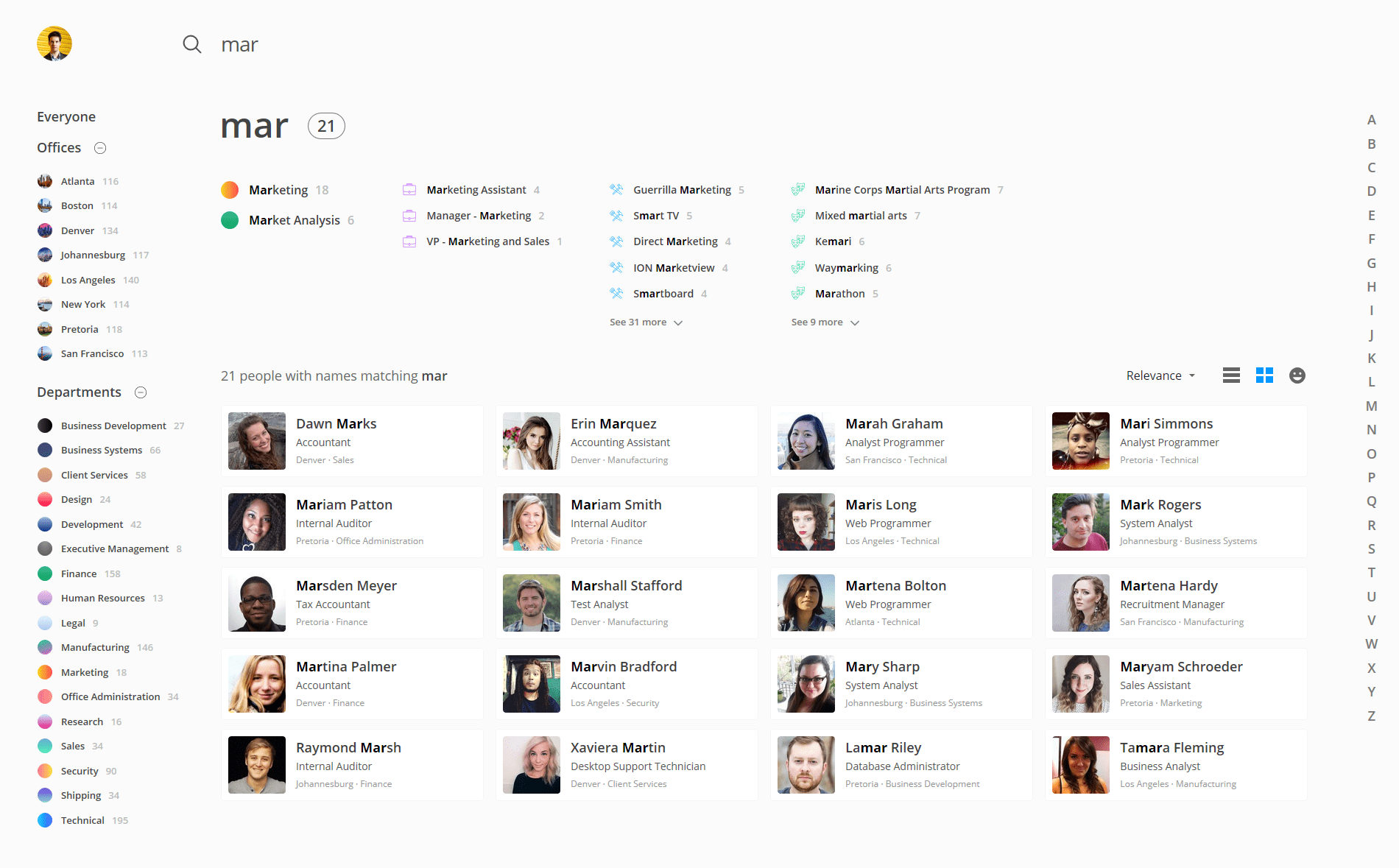
Built for Microsoft 365 & Azure AD
With a search engine designed specifically for Microsoft 365 and Azure Active Directory, OneDirectory allows you to quickly find people, offices, departments, skills, interests and the relationships between them all.
No complicated search queries
Advanced search is for advanced users. But what about the rest of us? With OneDirectory, you don't need to build complex search criteria just to find someone in your employee directory.
A natural search experience
Everything in OneDirectory is contextual and clickable so you can flow through your employee directory naturally. No clutter, no page reloads, no waiting.
View your employee directory in different ways.
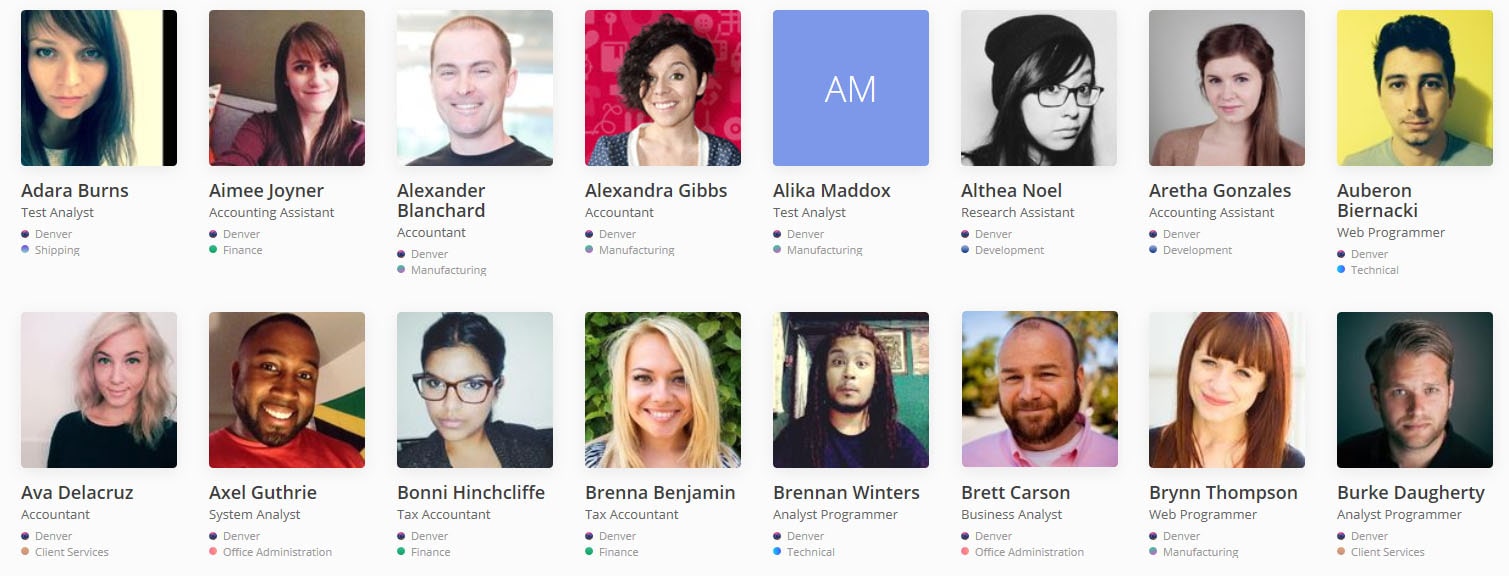
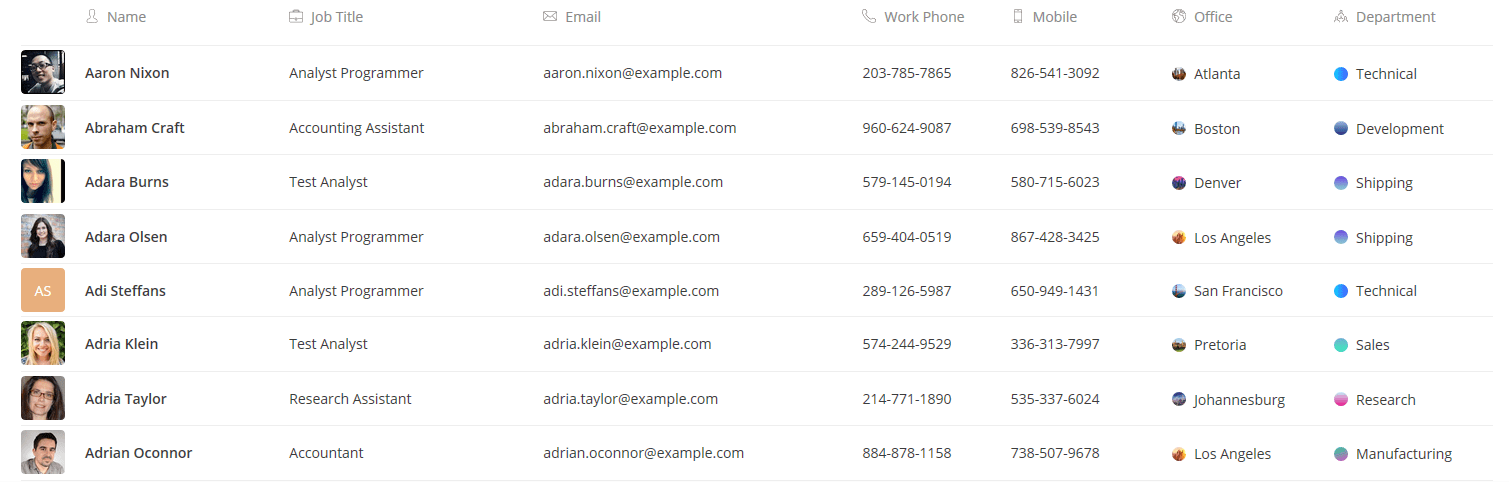
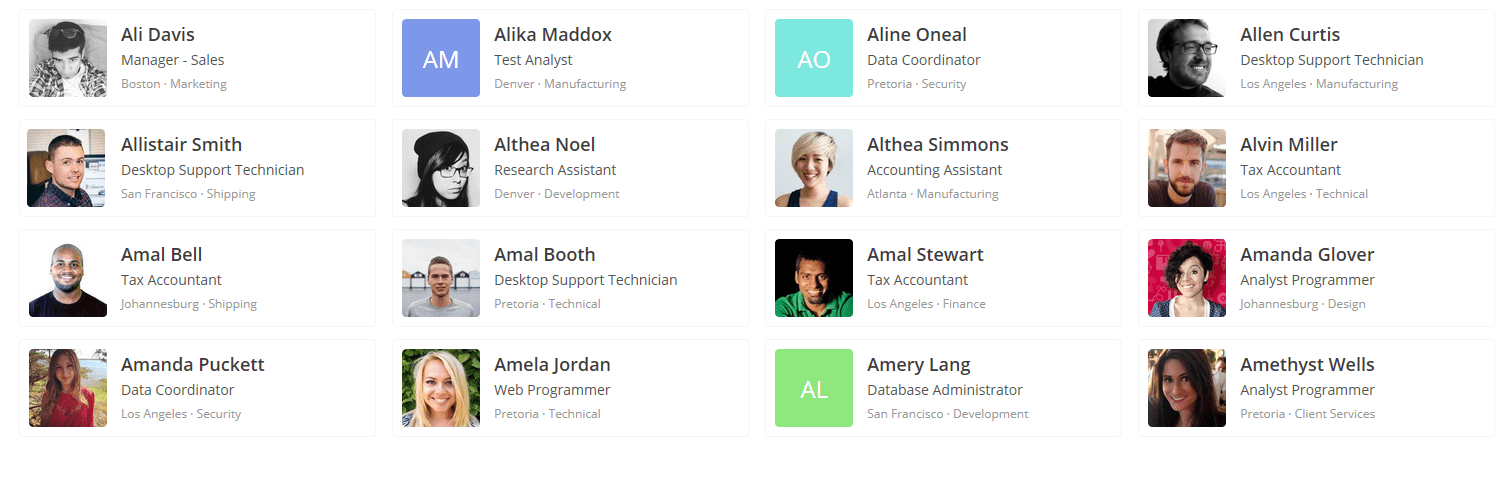
Put names to faces with large profile pics, get a high-level overview with profile cards, or flip to the list view to see more information and dig deeper into any field. Try it out below.

"Implementing OneDirectory has transformed our workplace. We've reduced IT’s workload and created a more connected and collaborative work environment. We highly recommend OneDirectory."Myra Jones, Information System Associate |
A better way to search and filter your employee directory.
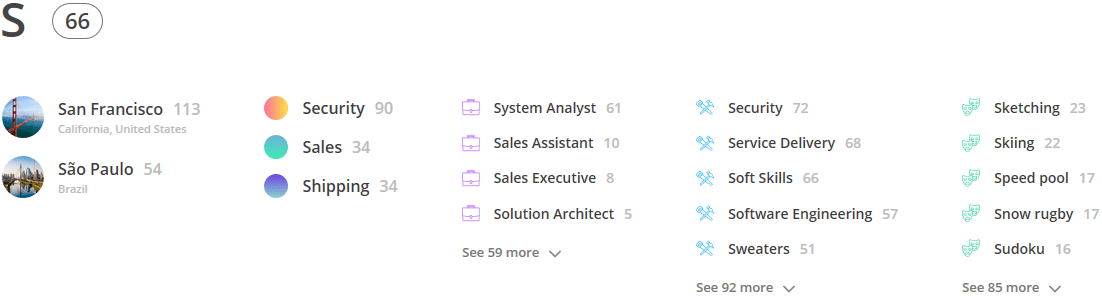
Text-based search works great for sentences, but not so great for people information. OneDirectory groups your most important employee profile data making it easier to find who you're looking for among thousands of employee profiles.
Flow through your company address book.
In OneDirectory, everything is clickable and opens instantly — names open profiles, offices & departments open team homepages, skills open a dedicated skill page.
Job titles show others with that title, Teams links open a Microsoft Teams chat. Maps expand, numbers dial, emails email (naturally) and it all happens without page reloads or waiting.

"OneDirectory is a visually appealing way for us to showcase our talented employees. I love being able to search and sort people in our agency."Joe Calabria, VP, Director Information Technology |
Modern employee profiles.
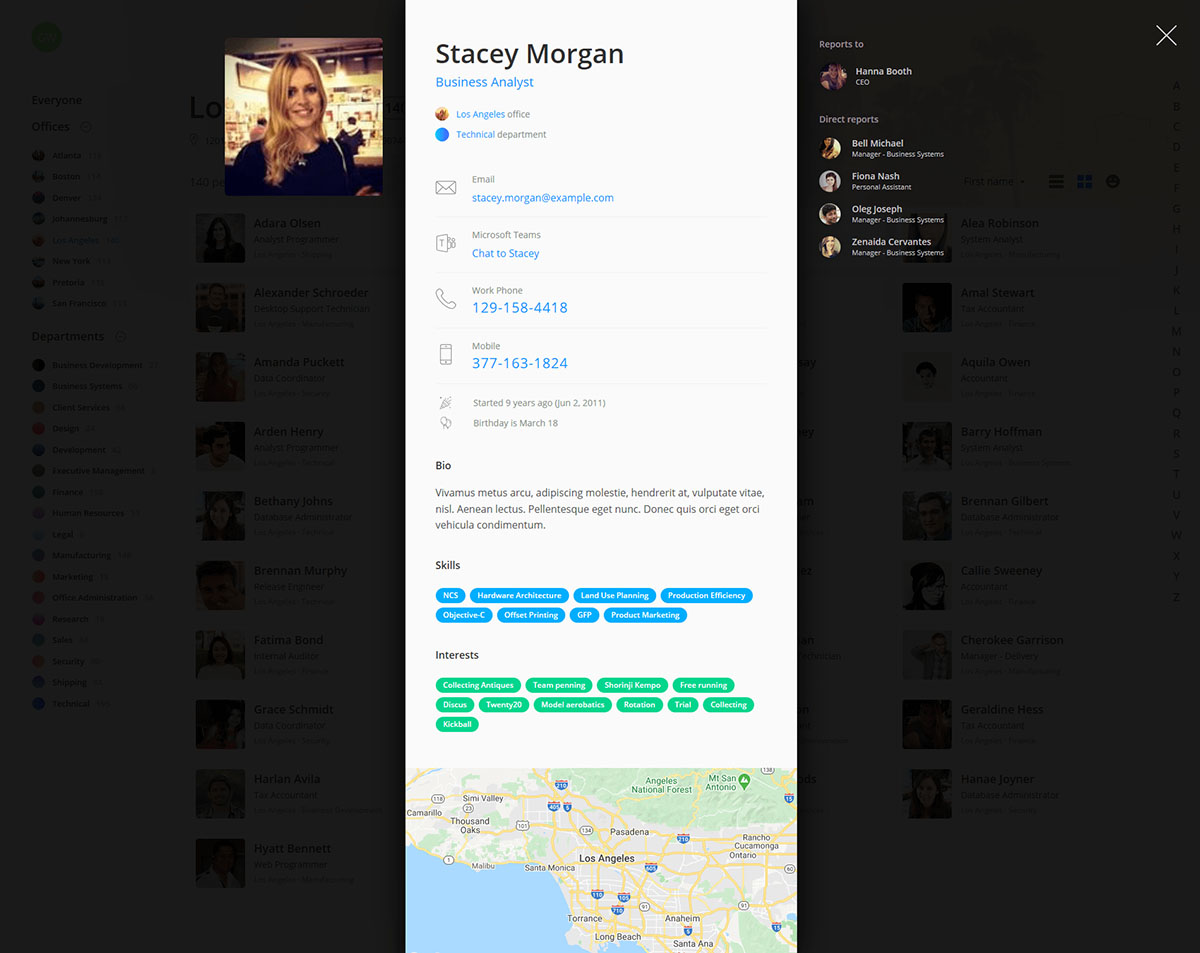
Give everyone in your organization an engaging digital profile that contains their contact information, location details, skills, reporting structure and more. Built for organizations running on Microsoft Office 365, OneDirectory profiles brings all your people data into one place and makes it discoverable across your organization.
Profiles open in an instant.
Literally.
Employee profiles open instantaneously. That's because OneDirectory pre-loads employee info before you need it, so when you open someone's profile it's already there waiting for you.
Exploring your organization is easy.
And dare we say, fun.
Everything on an employee profile is clickable. So browsing through your employee directory feels natural, like strolling through your office. See something to explore? Just click and you're there.
You'll never lose your place in the search results.
Employee profile pages show directly on top of your current view so you don't lose your place in the search results. Open and close profiles instantly, and flip through them without waiting for pages to load.
Employee profile features.
One-click calling
Click or tap a colleague's work phone or mobile number to call them instantly with your IP phone.
Mini org chart
View managers and direct reports directly on a profile, or click through to the full org chart.
Skills and interests
Discover your team's skills and interests and find matching people.
Profile pic
OneDirectory profiles showcase the best quality profile images available in Microsoft Office 365.
Employee location
See employee locations on a map. Scroll, zoom, and flip to satellite or Street View.
Chat in Microsoft Teams
Chat to your colleagues in Microsoft Teams with just a click.
Birthdays and hire dates
Discover your coworkers' birthdays and work anniversaries.
Office and department
Navigate to team homepages directly from an employee profile.
And more...
Bio/about me, employee address, one-click email, custom fields, and more.

"The OneDirectory team provided a high quality solution for us right from the start. Our employees love it!"Greg Johnson, Director of Information Technology |

"Immediately after deploying OneDirectory we received complimentary feedback from our users about the platform's user friendly design."Deborah Harris, Sr. Application Specialist |
Everything you need in a modern corporate directory.
A modern employee directory is about more than just finding contact numbers. OneDirectory includes an org chart, office directory, skills directory, remote collaboration features, support for external accounts, filtering rules, and a lot more.
Give your offices a digital identity.
OneDirectory automatically creates beautiful homepages for every office and department in your company, using the data from your Microsoft 365 user profiles.

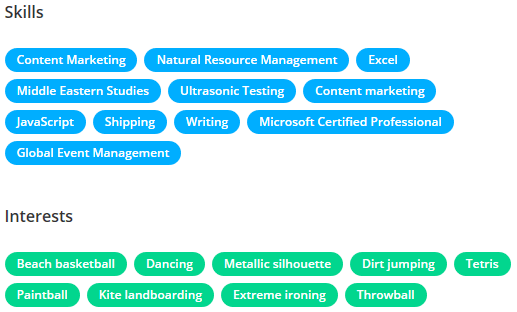
Find skills and knowledge within your organization.
Enable your employees to find coworkers with specific skillsets or knowledge. OneDirectory indexes the skills data from your Microsoft 365 user profiles and gives every skill its own homepage, so it's easy to find the skills you're looking for.
Support your distributed teams.
Connect with remote workers, browse employee addresses, and view office locations on a map. OneDirectory helps your employees feel connected no matter where they're working from.
See all remote collaboration features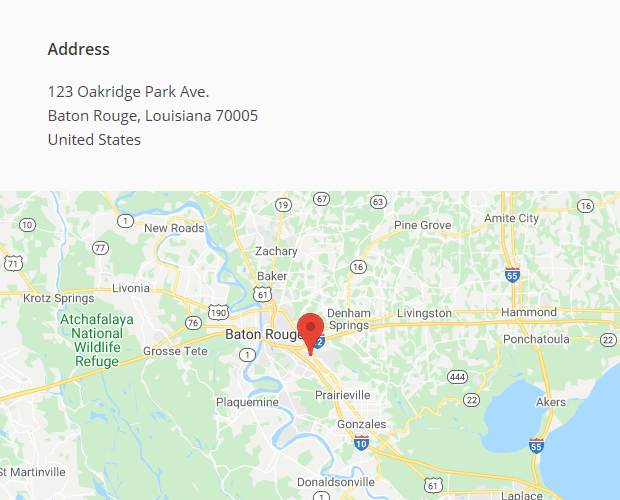
Syncs with Azure Active Directory.
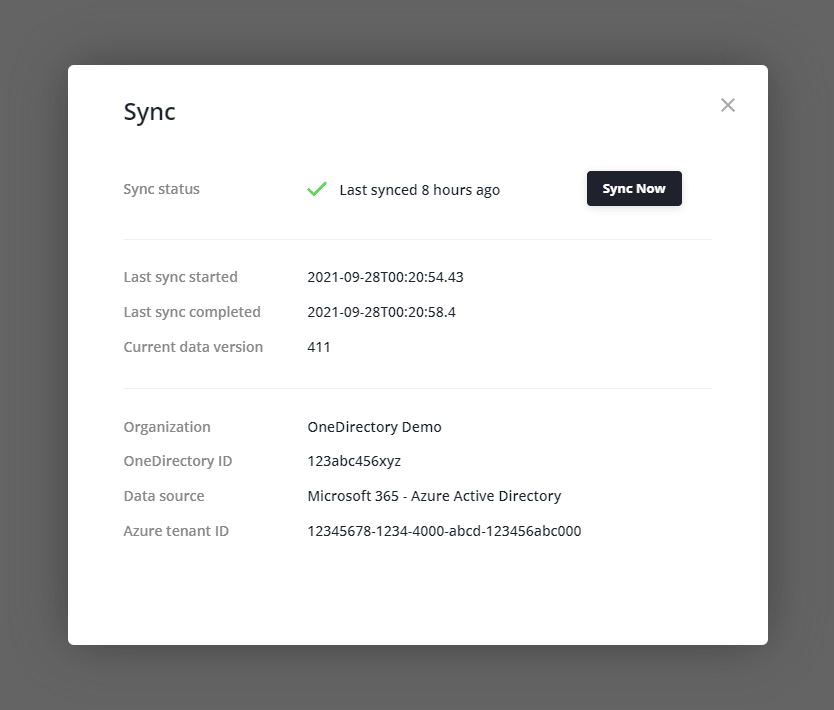
OneDirectory syncs automatically with Azure Active Directory every 12 hours, so your employee directory and org chart are always up to date from your Office 365 profiles. And if you make a change in AD you can do a manual sync at any time.
External accounts and filtering rules.
Guests and external user accounts.
OneDirectory will pick up any external user accounts in Azure AD, so your teams can search and browse external organizational contacts. Keep your external accounts in a separate group to find them easily, or filter them out if necessary.
Filter out unwanted accounts.
OneDirectory lets you set up powerful filtering rules to help you hide unwanted accounts from your employee directory. Our onboarding team is here to help!
Fine-grained directory curation.
For even more control, flip to edit mode and toggle on/off individual profiles from being shown in your employee directory.
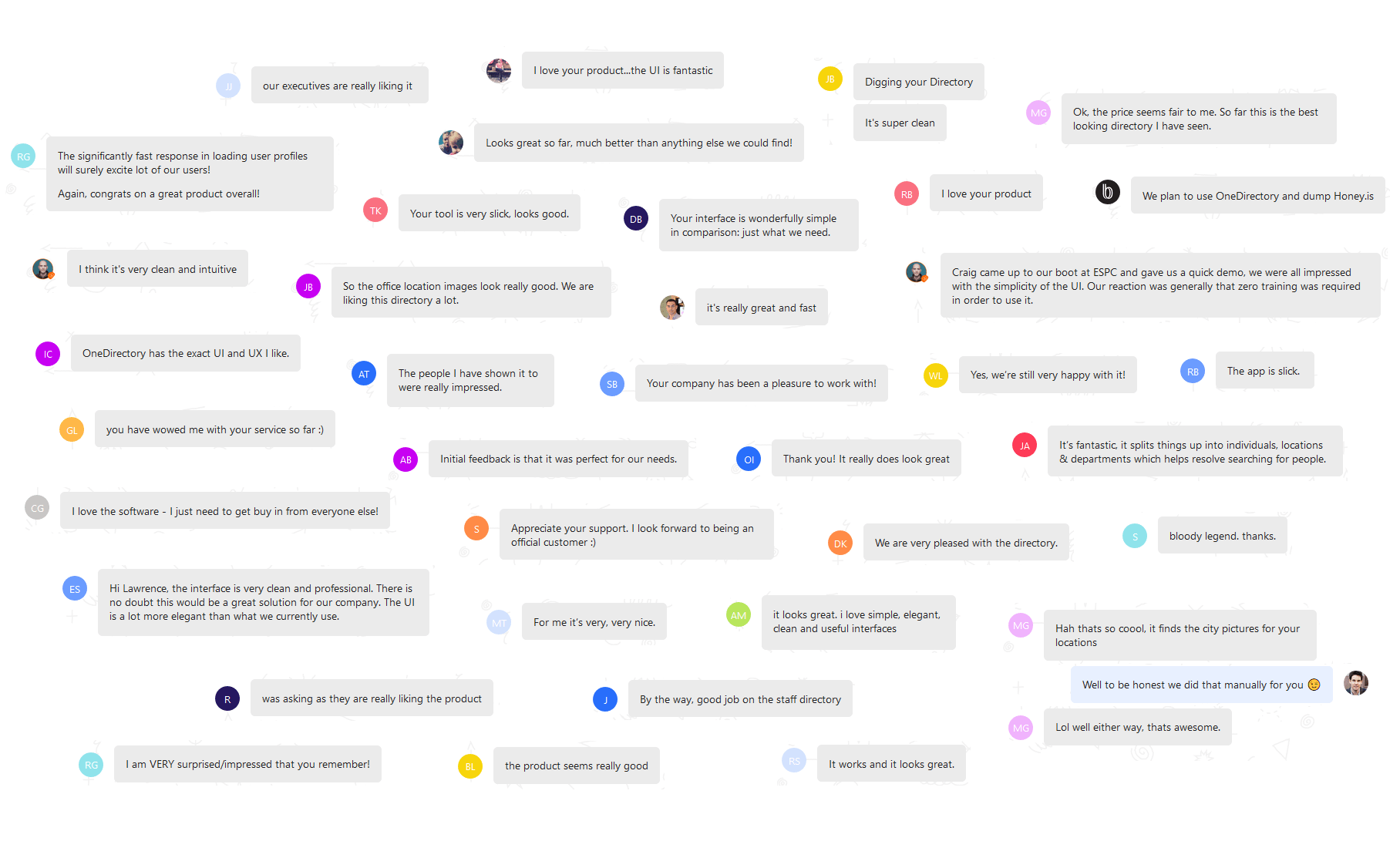
Don't just take our word for it.
Experience modern employee directory software
See how OneDirectory creates a more connected workplace with our 14-day free trial.
Or contact our sales team
» View OneDirectory on Microsoft AppSource
» Read our Complete Employee Directory Guide